Showing posts with label Cloud. Show all posts
Google Keep and Google Docs at face value have very similar
intentions. The two services aim to collect what you need to document in
some way. Google Keep does this in a very informal way with a UI
similar to a sticky note board, while Google Docs is more a full-fledged word processor.
 Sometimes, you might get started jotting something down in Google Keep
and find that it’s probably better suited in the format of a longer
document. Perhaps for organizational or backup purposes you just want to
keep extra copies of your Google Keep stuff in Docs. Either way, check
out this quick trick for transferring notes from Google Keep over to
Google Docs whether you’re on web or mobile.
Sometimes, you might get started jotting something down in Google Keep
and find that it’s probably better suited in the format of a longer
document. Perhaps for organizational or backup purposes you just want to
keep extra copies of your Google Keep stuff in Docs. Either way, check
out this quick trick for transferring notes from Google Keep over to
Google Docs whether you’re on web or mobile.

Menu options will appear when you hover over a note. Click the three vertical dots and here you’ll find Copy to Google Doc. Click this.

The note will copy quickly and then at the bottom of the screen you should see a message stating a successful copy was made. To open it in Google Docs, click Open.

Sure enough, you should see that the note is now in your Google Docs library with arguably a higher degree of professionalism and customization tools as well.


Select the note you want to copy to Google Docs and on the top right, tap the vertical three dots. The menu option may not come up right away, but if you scroll all the way to the bottom you’ll see Copy to Google Docs.


Tap that and wait a few seconds. Then click Open to see the document.
Turn your sticky notes from Keep into professional documents | Shutterstock
Note: While this feature will
successfully transfer over your content, some of the formatting
exclusive to Google Keep won’t make the cut in the transfer. For
instance, if you changed the background color of your note, the
resulting Google Doc will still have a plain white background.
Transferring Notes on the Web
To transfer your notes from Google Keep to Google Docs on the web, first visit the Google Keep website. Either create a new note by clicking Add note or hover over an existing note you have underneath.Menu options will appear when you hover over a note. Click the three vertical dots and here you’ll find Copy to Google Doc. Click this.
The note will copy quickly and then at the bottom of the screen you should see a message stating a successful copy was made. To open it in Google Docs, click Open.
Sure enough, you should see that the note is now in your Google Docs library with arguably a higher degree of professionalism and customization tools as well.
Transferring Notes on Mobile
To transfer a note from Google Keep to Google Docs on your smartphone, download the Google Keep app for iOS (which finally exists) or Android. The Google Docs app isn’t necessary. Log in with your Google account to bring up your notes. Select the note you want to copy to Google Docs and on the top right, tap the vertical three dots. The menu option may not come up right away, but if you scroll all the way to the bottom you’ll see Copy to Google Docs.
Tap that and wait a few seconds. Then click Open to see the document.
Note: If you have the Google Docs app it’ll open in that,
otherwise it will just open in a browser window. The web page will ask
you if you want to download the Docs app for the future, which is
necessary for making any edits. This is something to consider.
In a recent update,
Dropbox boldly went where it hasn’t gone yet. Documents in the cloud,
which can actually be created, stored and shared within the app. We’ve
seen a similar implementation by Google Drive
for a while now, but not by Dropbox. The company calls it Dropbox Paper
– a place where you can jot down ideas and share within a team while
easily embedding stuff in it.


The entire interface feels quite a bit like Medium. Clean and minimal with editing options available only when you right-click or hit the “+” symbol.

The search function works really well and this is where it’s important to name your relevant files correctly. In my brief time with a handful of documents created, I found that the search functionality was pretty good in finding documents that I needed even with a few keywords which were not part of the document name itself.
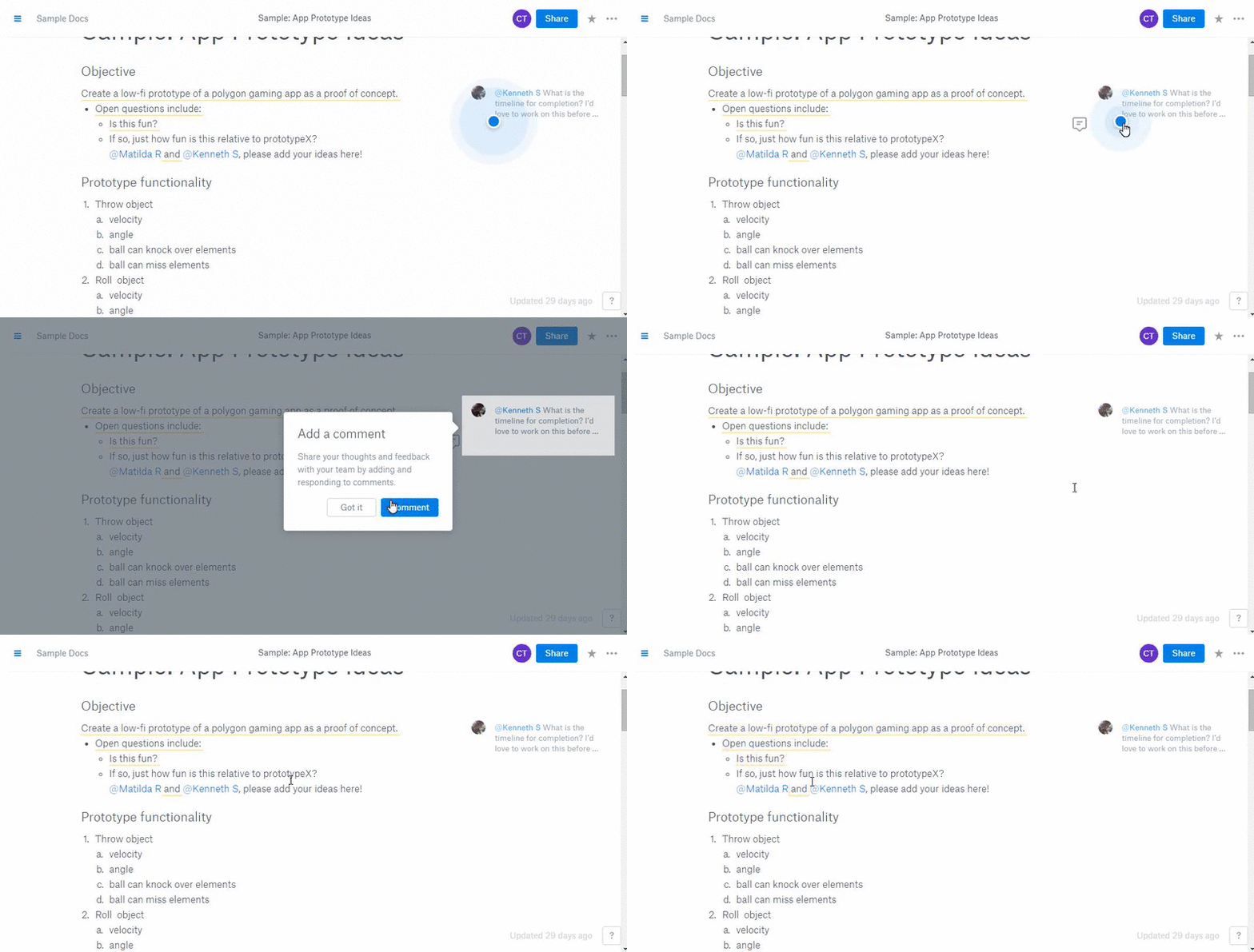
Sharing is super-easy. On the top-right, hit the Share button and start typing the name of the colleague who you want to share the document with. Once confirmed, he/she will also be able to edit your document and/or add comments, which I’ve found to be pretty useful. Especially if you’re doing a project in collaboration with people all over the country/world.

For the rest, it’s still a very good alternative to the baggage of Evernote and modestness of Google Keep. If you’ve tried it already, let us know in our forum what you made of it. Or have better alternatives that you work with.
Setting Up
As you’d expect, setting up the Paper account is a breeze. You can visit the Paper website and opt in. Once done, you can start creating docs yourself. Or, take a quick tour of the sample documents to see what you can create. If you want more details, hang around. You’ve come to the right place.
Please Note: At the time of writing, Paper is a web-only feature and is not included in the iOS or Android app.
Basically creating a ‘doc’ in Dropbox Paper is similar to creating a
quick note with proper formatting and additional options. It’s not
similar to creating an actual Word document,
like in Google Docs. There aren’t as many editing options available on
Paper yet, but there are still a few like Headings (H1, H2), Lists
(bullet or numerical), Insert Tables and Images and even one to Insert
Code.The entire interface feels quite a bit like Medium. Clean and minimal with editing options available only when you right-click or hit the “+” symbol.
Organize and Share
One thing where Dropbox has always been excellent is organizing your files. In a recent update, you can now see your most recent files first, making the whole experience of cloud storage more intuitive. Even with Paper, Dropbox has a clean and tidy interface of folders on the left, and an ever-present Create button above the search box.The search function works really well and this is where it’s important to name your relevant files correctly. In my brief time with a handful of documents created, I found that the search functionality was pretty good in finding documents that I needed even with a few keywords which were not part of the document name itself.
Sharing is super-easy. On the top-right, hit the Share button and start typing the name of the colleague who you want to share the document with. Once confirmed, he/she will also be able to edit your document and/or add comments, which I’ve found to be pretty useful. Especially if you’re doing a project in collaboration with people all over the country/world.
Neat but Improvements Needed
As far as taking quick notes, meeting minutes or similar work, Paper is a nice addition. Writers can’t use it fully as it doesn’t show word count anywhere, can’t be ‘Saved as’ a Word doc or any format and doesn’t support Markdown either. Coders might find it more useful, especially if they want it backed up on cloud and available on every device they work on.For the rest, it’s still a very good alternative to the baggage of Evernote and modestness of Google Keep. If you’ve tried it already, let us know in our forum what you made of it. Or have better alternatives that you work with.
Google Drive is offering its users 2GB of free storage for completing a simple security checkup. It only takes a couple of minutes to complete, but the offer only lasts until Feb. 17.
Designed to make sure everything about your account is shipshape, the security checkup runs through a checklist of security features examining your account recovery information, recent activity, account permissions, and your 2-step verification settings.
To access the security checkup, head on over to your Google account page.
Next, click "Get Started" button to begin the checkup.
 Google
You'll then be walked through each of the four sections of the checkup. Once you've looked over each section, you'll get a green check mark. When you've finished, you'll be greeted with this page.
 Google
You're all done! Just sit back and relax with the knowledge that your Google account is more secure and that you have 2GB of free storage on the way.
Google says it will add the free storage to everyone's account around Feb. 28, and you'll get an email confirmation when the change is completed.


